 Admas
1. Design and rehearse
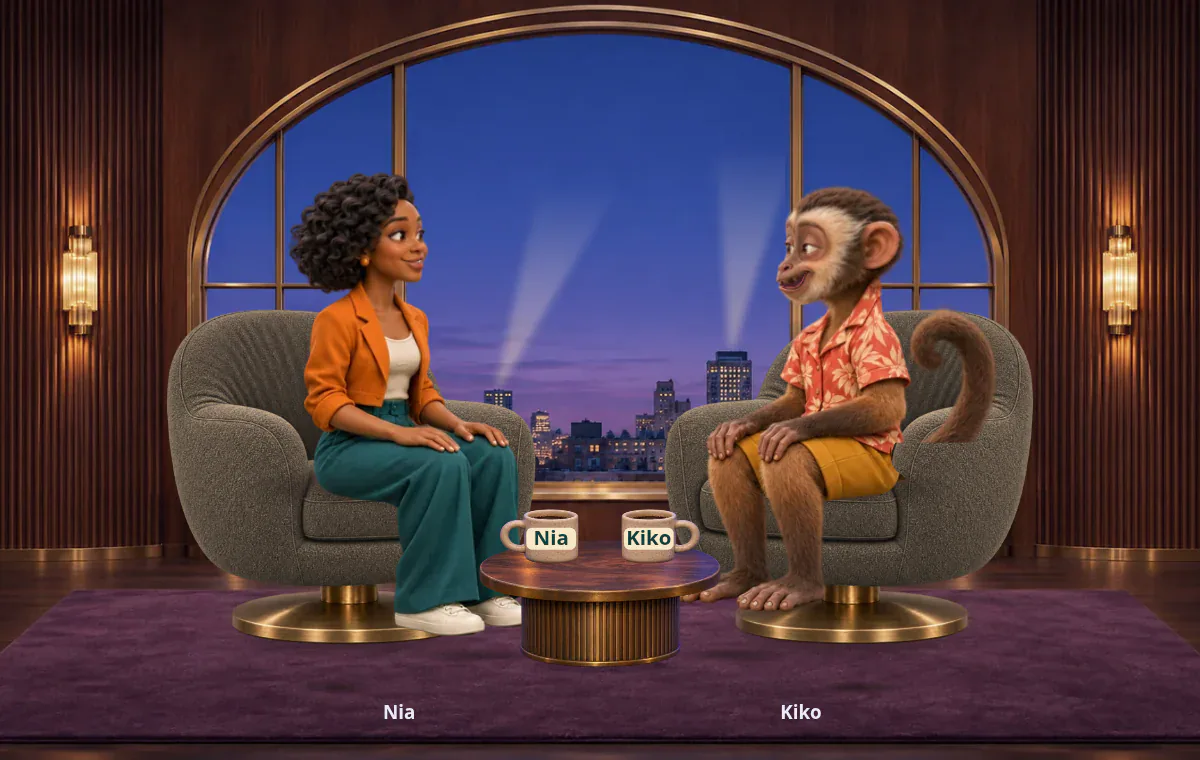
Open Starting look or tap a portrait. The animated cast includes Nia, Mika and Andre. Kiko is the monkey comedian. The anime cast includes Rei, Haru, Kenji and Sol. Enter a Stage name, adjust height and build, then open Choose your own colors to change the outfit, hair and eyes. Classic characters such as Luca and Imani also let you switch outfits, hairstyles and glasses.
Choose Backdrop to try the gallery, garden, or coast. Use Backdrop color to tint the scene and Backdrop movement to switch between a still image and a slow drift. Your backdrop travels with your avatar when you open Studio. Use Pose to compare standing and seated looks. When seated, choose Sofa color to change the upholstery. Open Preview expression and switch between Neutral, Smile, Laugh, Curious, Surprised and Sad. Compare the eyes, brows and mouth as you switch. Move your pointer across the preview or touch it to try eye tracking.
Under Read a script, type a short introduction in Your lines. Choose an installed Device voice and select Read aloud. Watch the mouth move through the line and settle when it ends. For a silent rehearsal, select Captions only, then Play captions. Both rehearsals use zero Admas credits.
“Welcome to the show. What’s one thing you learned the hard way?”
2. Save your cast
Select Use in Host Studio, then sign in to your Admas account. Check the Lead tab. If Studio offers Apply Creator preview to selected character, choose the slot you want and apply it.
Leave Duo off for one speaker. For a conversation, turn it on, open Co-host, and choose the second character’s look. Under Cast facing, choose Face the audience to address viewers or Face each other for a conversation. A solo host faces the audience. During a show, select Apply scene to this show to change where the hosts face. Edit each host’s Stage name to change the name beneath their feet and on their mug. Each host can have a different sofa color.
On Lead or Co-host, open Voice under Character voice. Keep the avatar’s default or pick a live show voice for that host, such as Leda · Youthful. Select Use this avatar’s default voice to restore it. Enter your Show topic. Under Language, choose English or Amharic for both hosts. Select Save my character to keep the cast in your account.
Host your show in Amharic
In Host Studio, choose Amharic · pilot under Language and enter a topic such as የልጅነት ትዝታዎች (childhood memories). Start the show and listen to the opening line in Amharic. For a free script rehearsal in the designer, choose an installed Amharic device voice or select Captions only.
For a first duet, try “Why do two people remember the same event differently?” It gives both hosts a specific question to explore.
3. Understand credits
Live AI conversations use your shared Admas credits to generate replies and speech and transcribe guest audio when enabled. The credits used vary by turn. Rehearsing with a device voice or captions is free.
Eligible welcome and promotional credits apply first. See Host and Builder activity together in Billing & usage. If Studio asks for more credits, select Save cast & open billing, add credits through your plan, then return to Host Studio in the same account. Your saved cast is ready to start.
4. Start the conversation
Select Start show when you’re ready for automatic hosting. A solo host develops the topic. In a duo, the partner prepares a response while the current speaker finishes. To ask one host directly, start your message with their stage name and select Send.
Use Pause auto to pause automatic turns while keeping audience questions open. Use Interrupt to cut off a turn, Resume auto to restart the conversation, and Stop when the show is over. Stay at the controls while broadcasting.
Your show follows your topic. Customer hosts can answer a viewer who asks about Admas. They receive no scheduled Admas advertisements.
5. Broadcast and invite guests
Connect your broadcast link to OBS or TikTok LIVE Studio
Choose Open broadcast to publish the current cast to a separate stage. Select Enable audio & start there if prompted. You can capture this window and its audio in streaming software.
Choose Copy broadcast link. In OBS, add a Browser source to your scene and paste the link into its URL field. In TikTok LIVE Studio, paste the same link into a Link source if that option is available on your account. This link belongs to your account. It waits between shows and picks up your next Start show automatically. A private Start preview appears there only when you choose Open broadcast.
Set the source size to match your scene. Try 1920 × 1080 for landscape or 1080 × 1920 for a vertical show. Keep one output playing sound. Move audio back here returns playback to Studio. If you choose Regenerate link, replace the old URL in your streaming software.
Invite someone to ask a question
Select Copy guest link in Studio and send it to your guest. On that page, they choose Join show, enter their name, and use Send chat or Speak when microphone access is available. The current host finishes the audible line, and the guest’s question takes priority over the next automatic turn.
Before you go live on your streaming platform, view the output on a second device. Check that the speaking host’s mouth moves, captions are readable, and you hear one voice at a time.